Video Version:
Haven’t seen part 2? Check it out
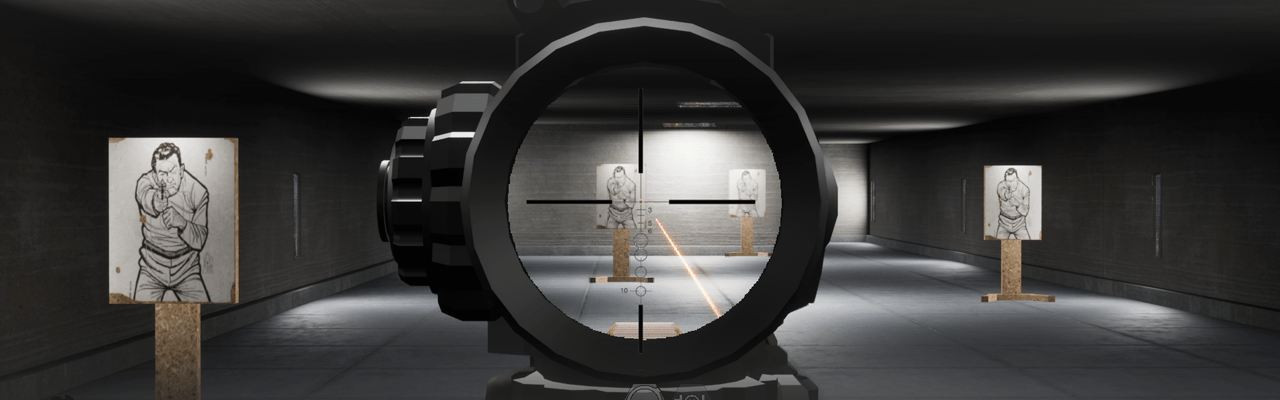
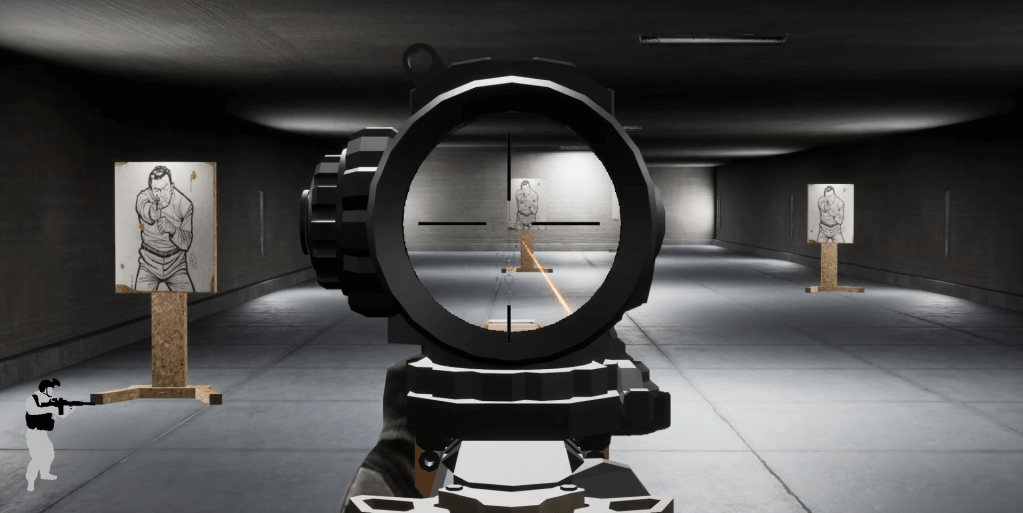
This should be the last part of the series. This focuses on designing your Sights so they have a very clear sight picture. It utilizes translucent material to achieve this. It gives off the illusion of masking the optic.
Designing Materials for Transparent Scope Interior (Step by Step)
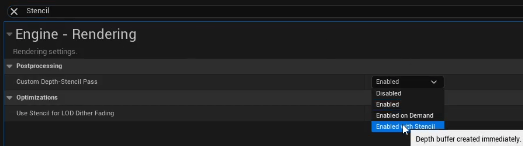
- Enable Stencil Depth on Project Settings
- Create folders for this demo: ScopePP_DEMO, ScopePP_DEMO > Scope, ScopePP_DEMO > Scope > mat_aimedin
- Download the demo assets from this link.
- Under ScopePP_DEMO > Scope drag the starting materials from the zip file under Scope_translucency > starting.

- Under ScopePP_DEMO > Scope drag the starting meshes from the zip file under Scope > fbx.
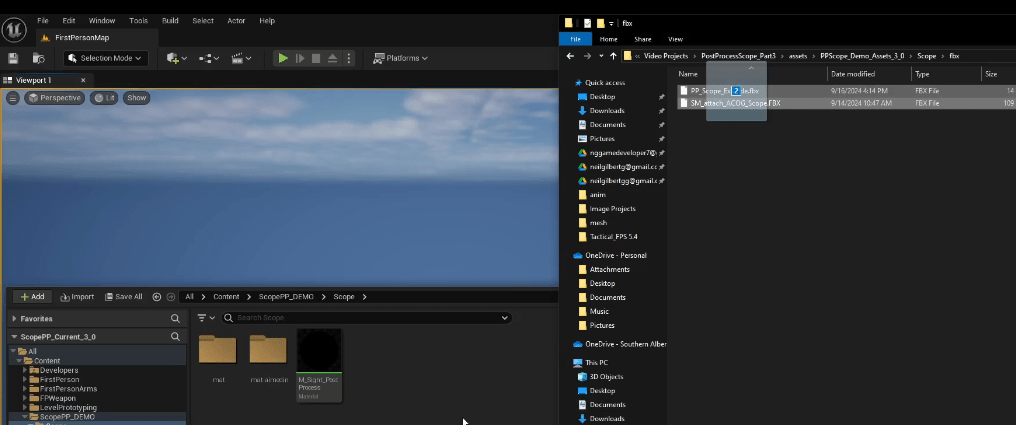
- In the Scope mesh create a new socket named pp_exclude, position it so it rests upon the entry of the scope while also having a clean line of sight through.

- Go to your character blueprint, create 2 static mesh components. One for the Scope Mesh and one for Sight Mask.

- Assign the Static Meshes for them ScopeMesh > SM_attach_ACOG_Scope, and PPExcluder > PP_Scope_Exclude.

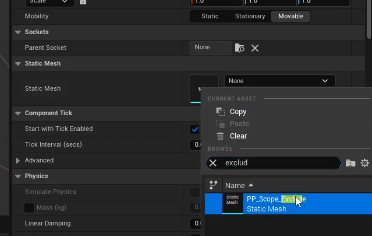
- Make sure to set the Parent Socket for the PPExcluder Static Mesh Component to the one we created earlier in the ScopeMesh.
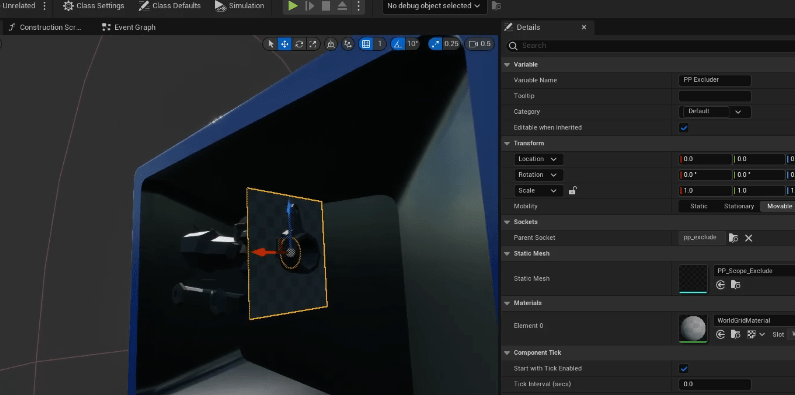
- Set the ScopeMesh Location, Rotation and Scale so it directly sits on top of the camera which gives a player a clean Line of sight trough.

- Now set the usual settings for the PPExcluder:
- Render in Main Pass > Unchecked
- Render in Depth Pass > Unchecked
- Render in CustomDepth Pass > Checked
- CustomDepth Stencil Value > 1


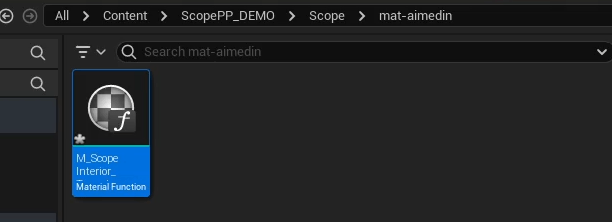
- Create a new material function under ScopePP_DEMO > Scope > mat-aimedin, name it M_ScopeInterior_TranslucencyMasker
- Open the M_Sight_PostProcess material we copied over under ScopePP_DEMO > Scope. Copy this section. As it will be used to identify the stencil we set earlier for the PP Mask mesh earlier (should be value of 1)
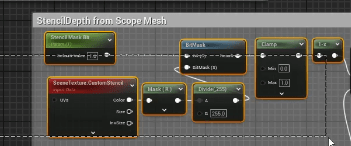
- Paste it on the M_ScopeInterior_TranslucencyMasker material function we just made.
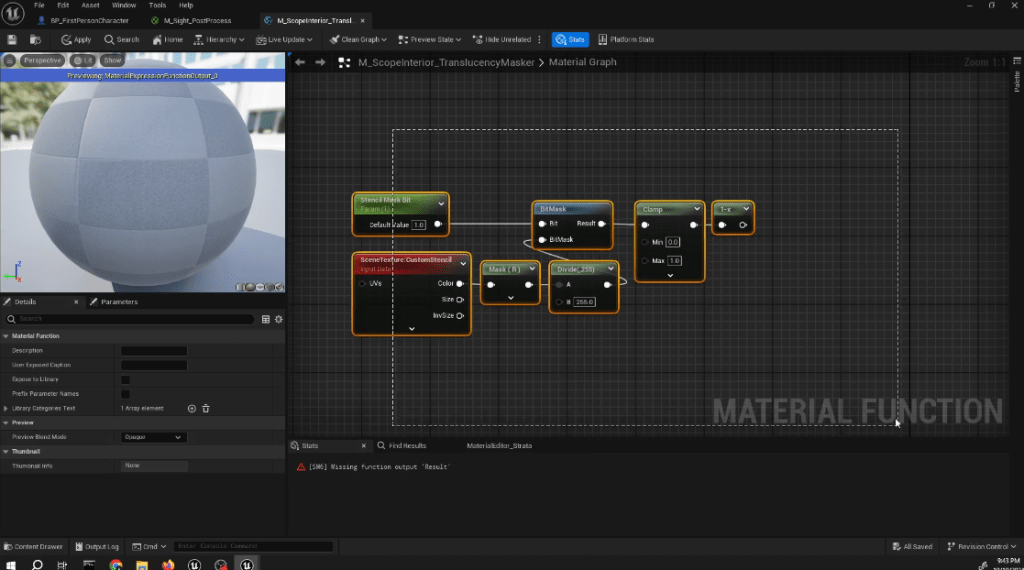
- Change the Scalar Mask Bit Scalar Parameter Node to an Input Node with that following settings:
- Input Name: Stencil Bit
- Input Type: Function Input Scalar
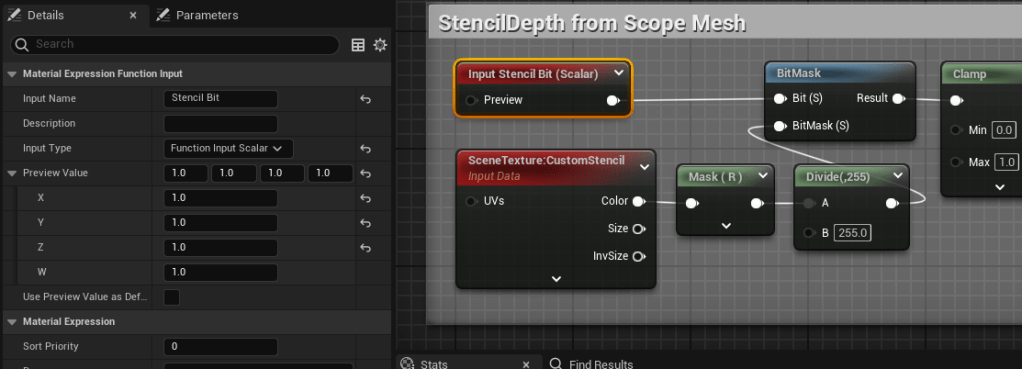
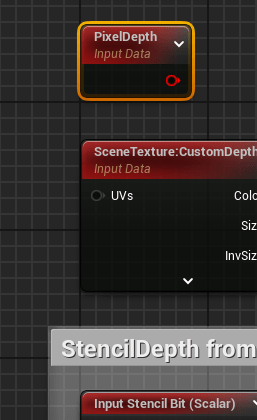
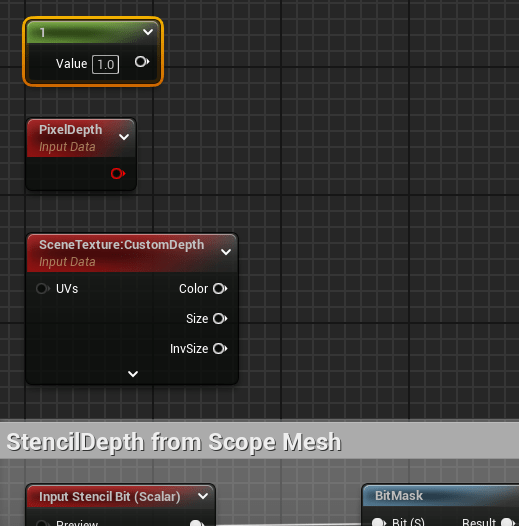
- Create a SceneTexture node set the SceneTextureId to CustomDepth

- Create a Pixel Depth Node
- Create a Constant Node with the Value of 1.
- From the SceneTexture:CustomDepth node create a Component Mask node with only R as checked.
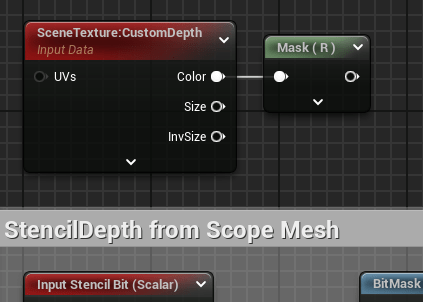
- Create a LinearInterpolate node, connect the Stencil Identifier group of nodes to the Alpha, connect the CustomDepth component mask to B pin, keep the A pin at 0
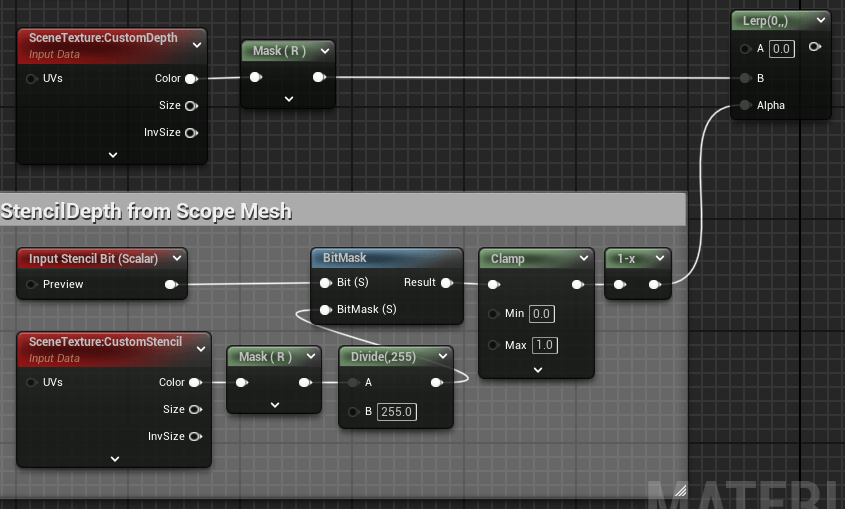
- Create an If node, connect the Linear Interpolate to the B pin. Connect the PixelDepth to the A pin. Create 2 constant nodes, one will have a value of 0 and another will have 1. Connect the one with 0 value to the A < B pin, connect the one with 1 value to A > B pin and A == B pin.
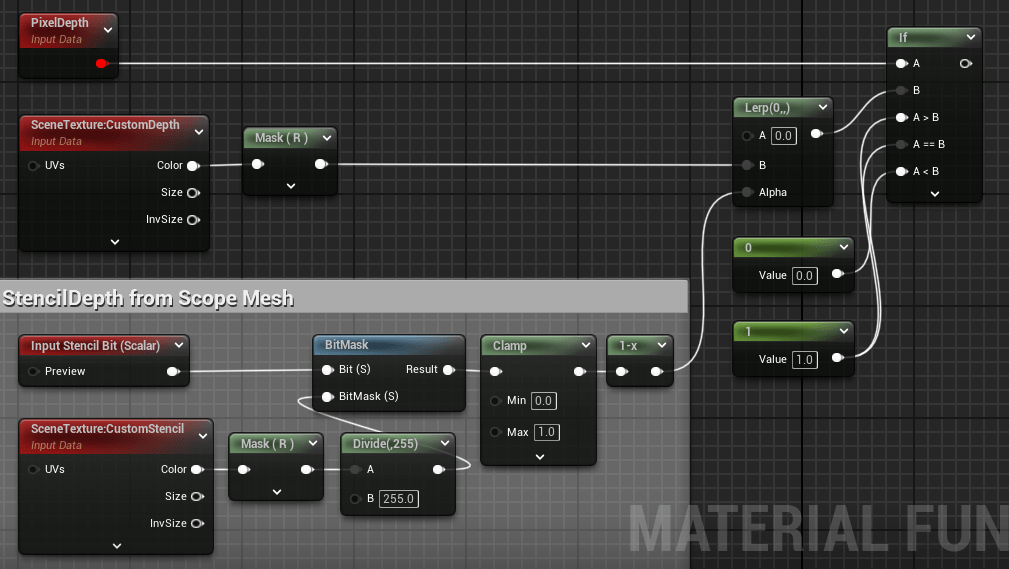
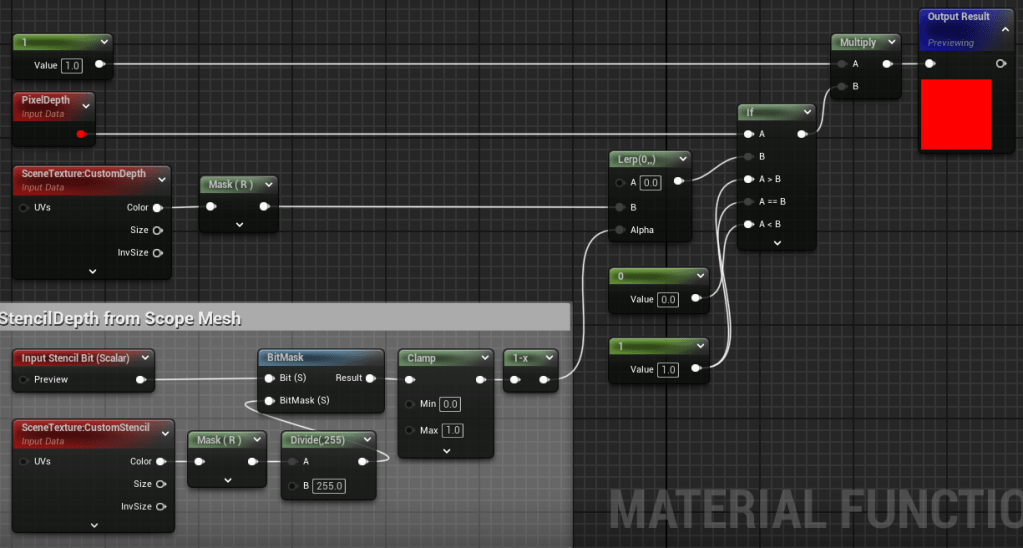
- Create a Multiply node, connect the If node and the constant 1. Finally, connect that with the output.
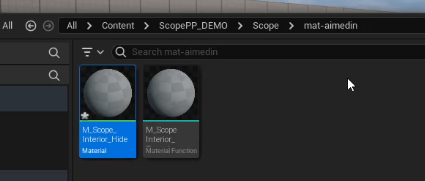
- Create a new Material name it M_Scope_Interior_Hide
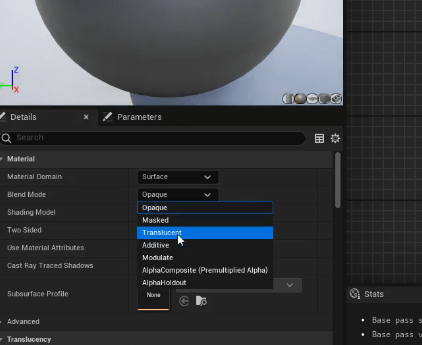
- Set the Blend Mode to Translucent.
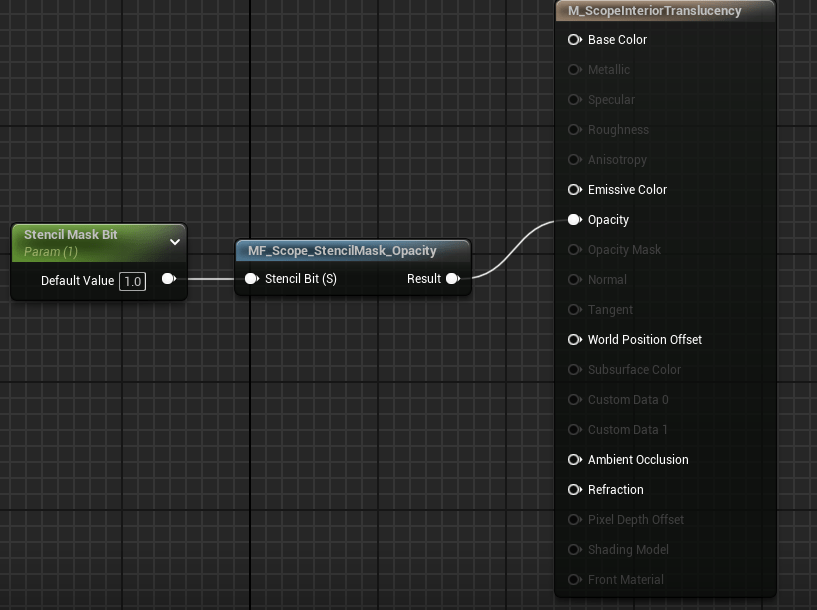
- Create a Scalar Parameter node name it Stencil Mask Bit set the default value to 1. Create a Material Function Node set the Material Function to M_ScopeInterior_TranslucencyMasker. Connect the Scalar Parameter to the Material Function and connect the Material Function to the Opacity pin.
- For demo purposes, set all the material slots in the Scope Mesh to M_ScopeInterior_TranslucencyMasker material we just created.
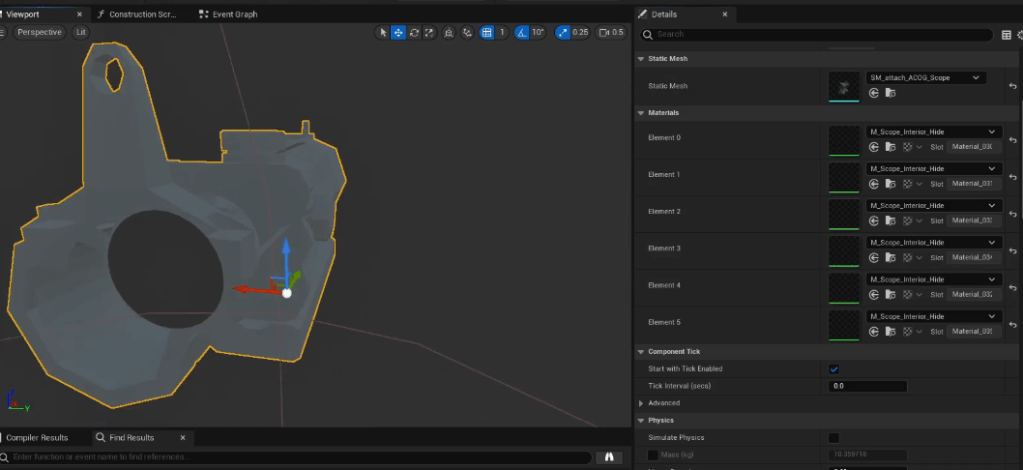
- Done. It should be making the interior of the Scope translucent with 0 opacity.
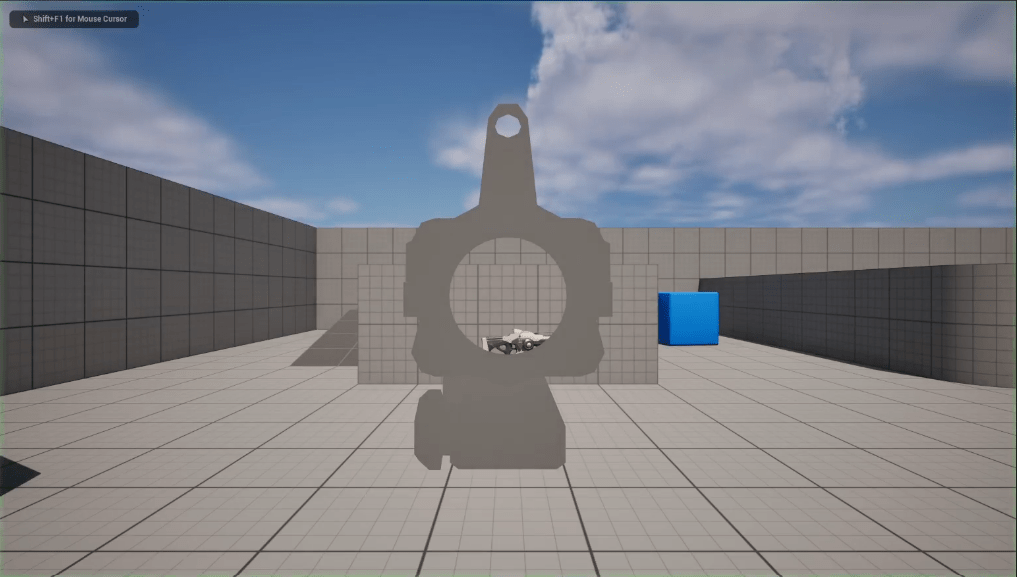
Designing Meshes for “Masked” Interior
Make sure you design meshes with specific material slots. That will be switched at runtime with the material with translucency.
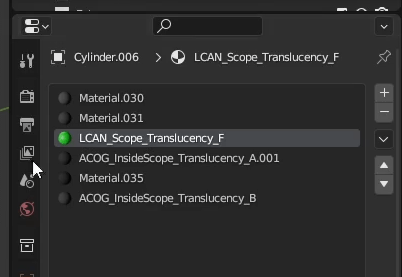
Designed the Scope so there are specific material slots that will be changed to the translucent material we created earlier for the interior of the scope to mask.
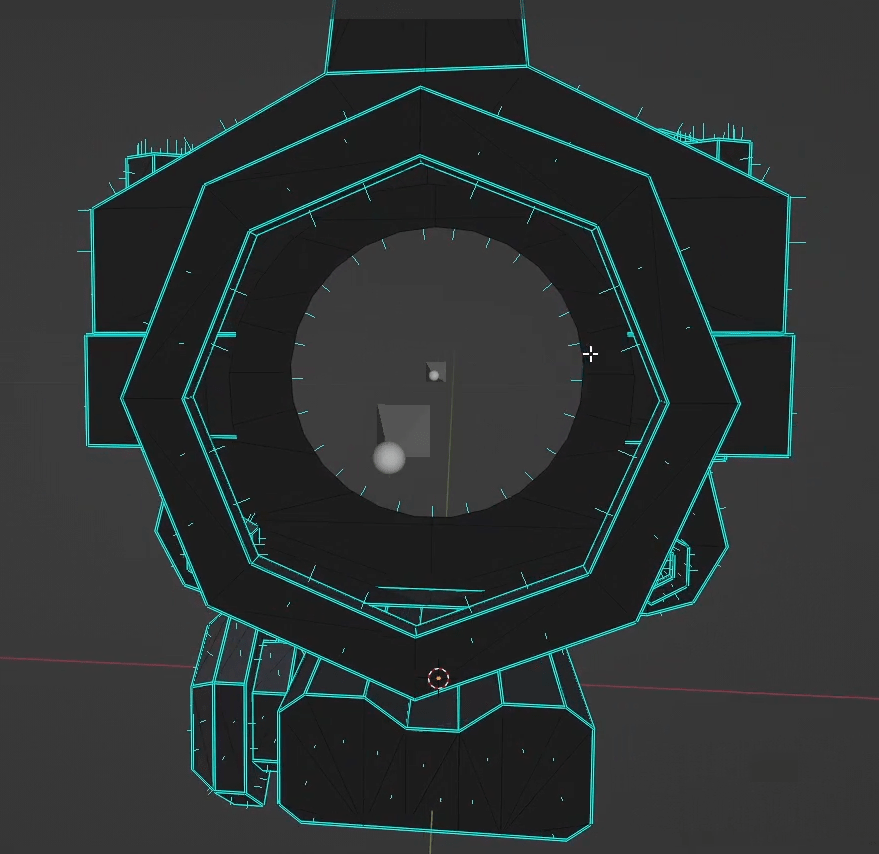
Here are the parts of the mesh that will not be included in the translucency mask.
When you export this to Unreal it should look something like this:
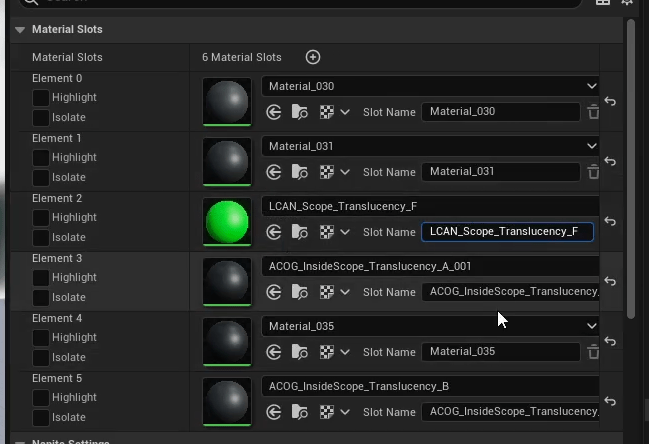
Now in the blueprint, implement a method to:
- Get the original material data
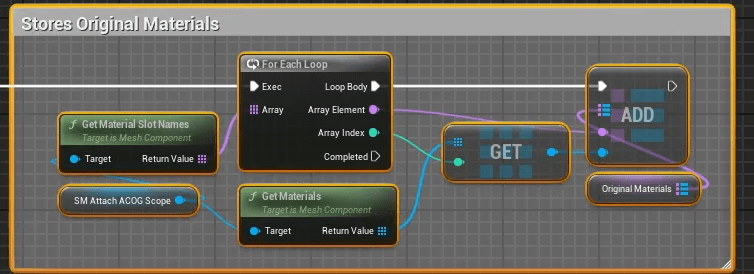
- Replace the designated slots with the scope interior translucent material we created
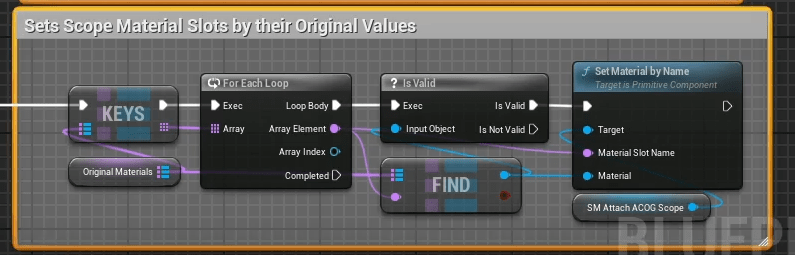
- Restore all the original materials for the Scope Mesh

These three you will be able to switch the translucency of the interior of the scope when needed or when the player is aiming into the scope.
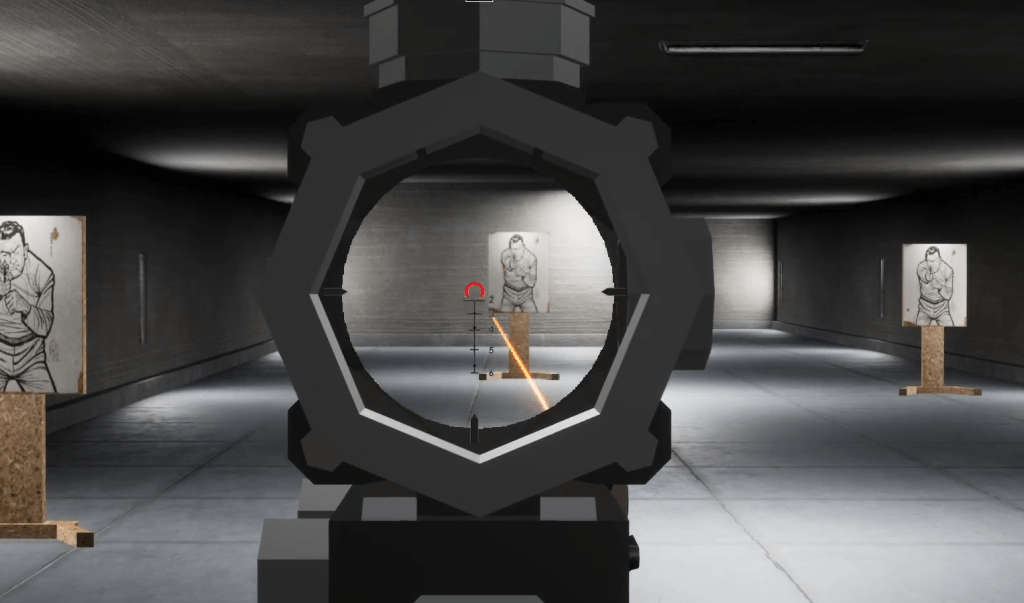
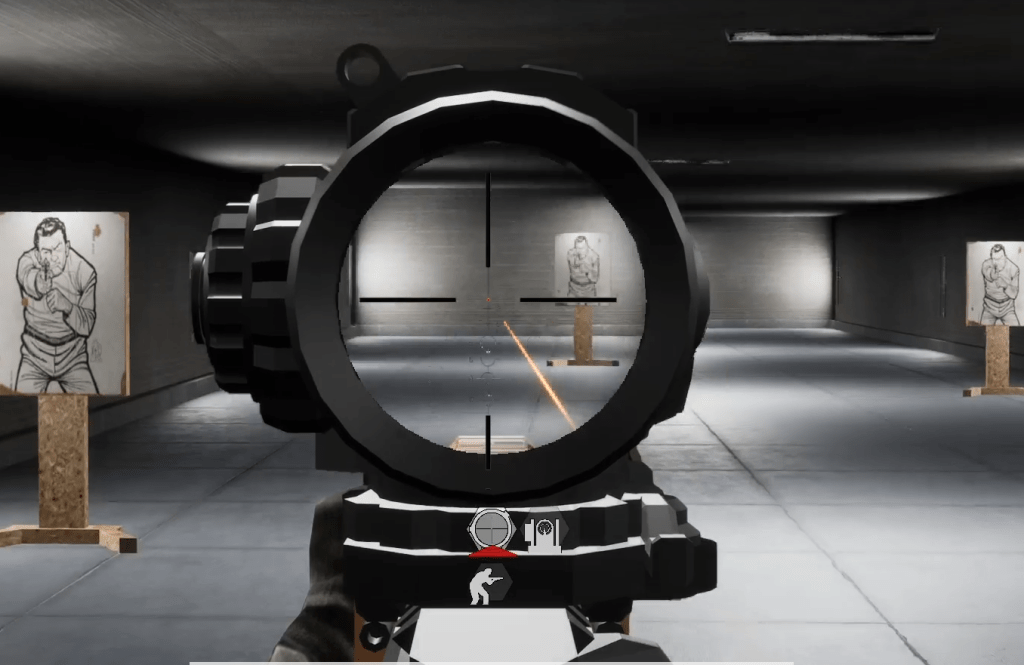
Your Scope Mesh should look something like this when properly implemented.
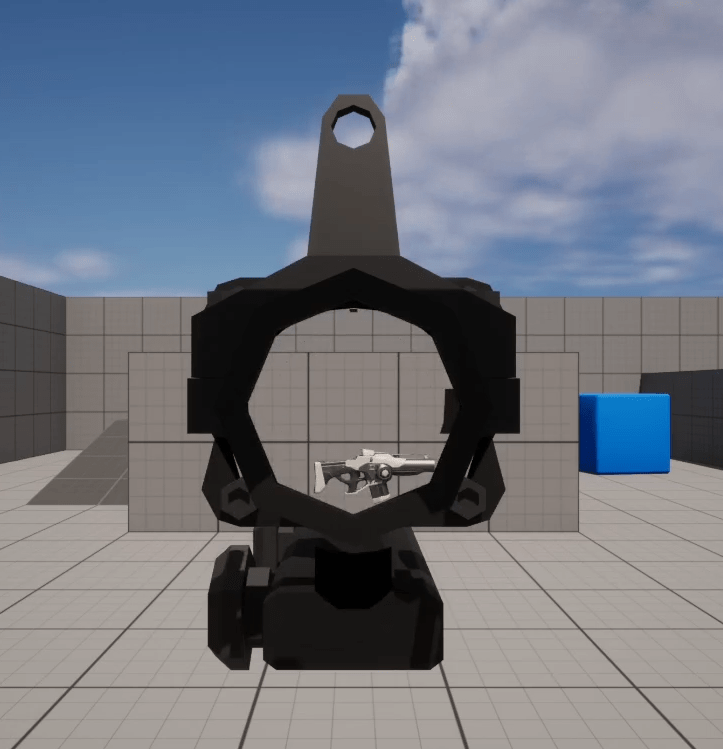
Best Case Implementation
Here are some of the best case implementations:
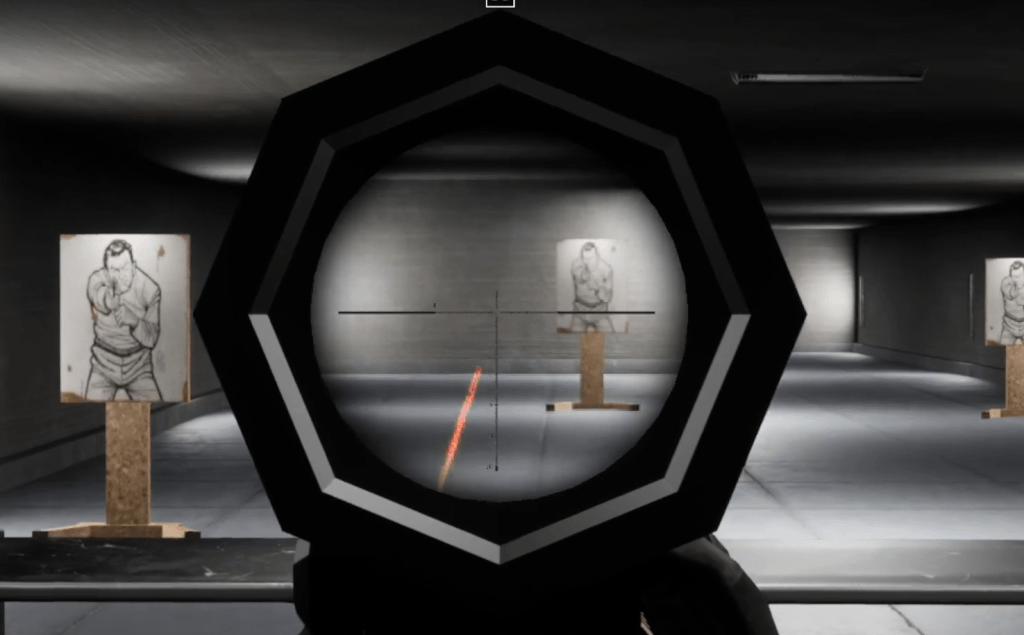
 Portfolio: NGG