Project Goal & Deliverable
The ideal product for this project is a game of Tic-Tac-Toe created from the Kotlin programming language. First phase will be about constructing the backend logic and structure to make this game possible and allowing to interact with the game in the command line. Second phase will be about exporting the logic and structure into an android mobile app with a proper graphical user interface. Third phase will be about applying animations to elements of the application to make it look good.
Jump to: Part 1 | Part 2 | Part 3
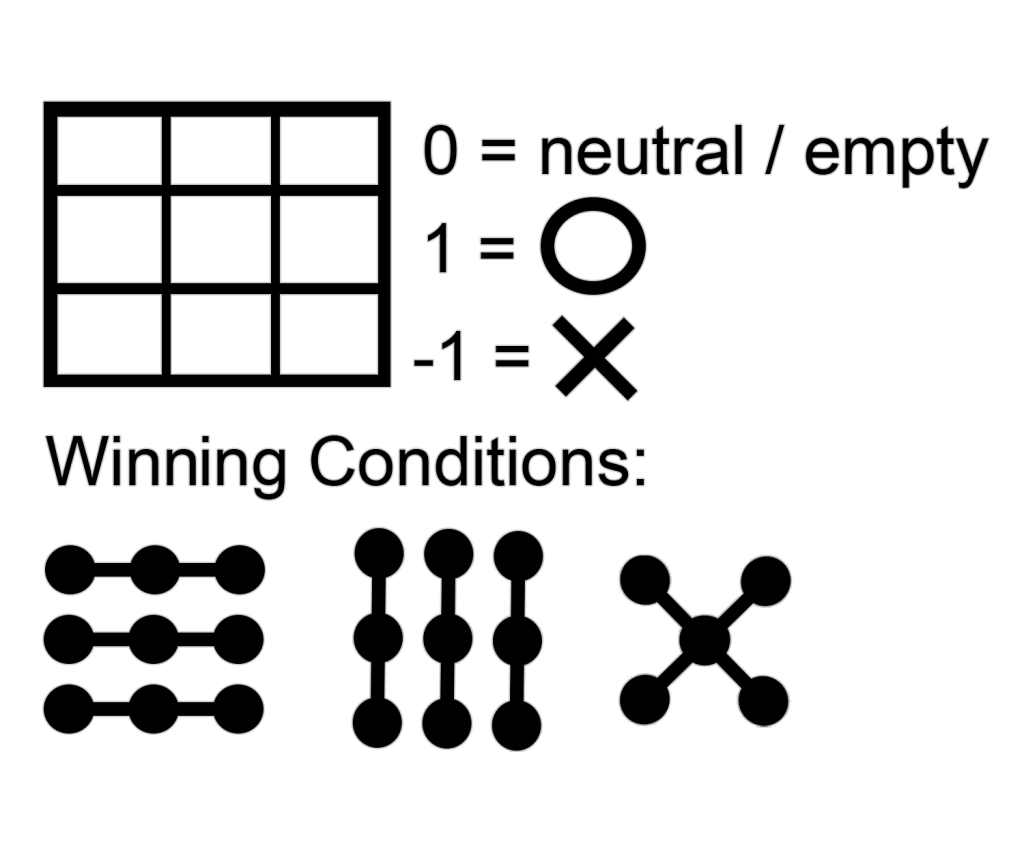
Winning Conditions
Technologies Used
Kotlin Programming Language is designed to be a lightweight version of the Java Programming language specifically designed for mobile android app development. While being based on Java it also utilizes JVM and Java Class Library. The recommended IDE to use for this language is IntelliJ IDEA. This being a programming language based on Java we will also compare differences on how syntax on these 2 differ
Android Studio is the official development environment for Mobile Android App Development. This IDE is officially supported by Google as well as based on the IntelliJ IDEA so importing assets and source files is a breeze.
Part 1: Logic and Flow
In this phase we will be creating a prototype for the game in a command line interface. We will focus logic, structure and flow of the game in this section. IntelliJ IDEA will be majority used in this part.
Jump to: Cell.kt | Game.kt | Main.kt
Cell.kt | Data Class
This data class will store the relevant information about a cell.
Jump to: Documentation | Dissection
package game
data class Cell(
    // loc valid values: 1x1, 1x2, 1x3, 2x1, 2x2, 2x3, 3x1, 3x2, 3x3
    val loc : String,
    // tic valid values: 0=neutral, 1=O, -1=X
    var tic : Int
    )
Documentation
Attributes
- “loc” will store the name or location of the grid, valid values for this are 1×1, 1×2, 1×3, 2×1, … 3×4.
- “tic” will store what symbol is stored in that cell, default value for this is 0 = neutral / empty, 1 = O, -1 = X
Code dissected:
val & var
- “val” represents that the variable is immutable, meaning that once initialized the value for the variable can’t be changed
- “var” represents that the variable is mutable, meaning that the value of the variable can be changed
compared to java
In java to achieve the same kind of effect you need to use the “final” keyword
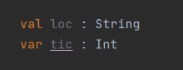

data type declaration
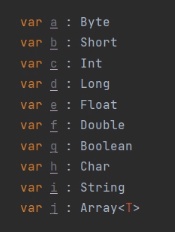
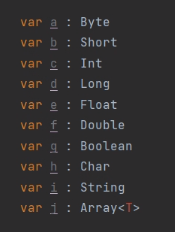
Data type declaration in Kotlin is quite different from other programming language, first you add a colon then specify the data types after the variable name.
Kotlin Data Types
- Integer types
- Byte
- Short
- Int
- Long
- Floating-point types
- Float
- Double
- Boolean
- Char
- String
- Array
compared to java
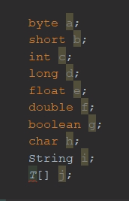
Data type declaration in Java works quite different, in java data type is declared before the variable name.
Game.kt | Class
This class will handle all the major of the game logic. From starting the game, setting up the necessary variables to start the game; ending the game; marking a cell; to checking winning logic and checking a deadlock state;
Jump to: Documentation | Dissection
package game
class Game {
    var running = false
    var gridTicVal = mutableListOf<Cell>()
    var curSign = 1
    fun start()
    {
        running = true;
        gridTicVal = mutableListOf(
            Cell("1x1", 0),
            Cell("1x2", 0),
            Cell("1x3", 0),
            Cell("2x1", 0),
            Cell("2x2", 0),
            Cell("2x3", 0),
            Cell("3x1", 0),
            Cell("3x2", 0),
            Cell("3x3", 0)
        )
        curSign = 1
        //println("[Game] Started")
    }
    fun end()
    {
        running = false
        gridTicVal = mutableListOf<Cell>()
        //println("[Game] Ended")
    }
    fun mark(loc : String) : Boolean
    {
        var targetCell : Cell? = gridTicVal.find { it.loc == loc }
        if(targetCell!=null && targetCell.tic==0)
        {
            targetCell.tic = this.curSign
            gridTicVal[gridTicVal.indexOf(targetCell)] = targetCell
            curSign *= -1
            //println("[Game] $loc marked, turn $curTurn")
            return true
        } else {
            return false
        }
    }
    fun checkWinningCondition(sign : Int) : Boolean
    {
        if( gridTicVal.indexOf(Cell("1x1", sign)) > -1 &&
            gridTicVal.indexOf(Cell("1x2", sign)) > -1 &&
            gridTicVal.indexOf(Cell("1x3", sign)) > -1)
            return true
        if( gridTicVal.indexOf(Cell("2x1", sign)) > -1 &&
            gridTicVal.indexOf(Cell("2x2", sign)) > -1 &&
            gridTicVal.indexOf(Cell("2x3", sign)) > -1)
            return true
        if( gridTicVal.indexOf(Cell("3x1", sign)) > -1 &&
            gridTicVal.indexOf(Cell("3x2", sign)) > -1 &&
            gridTicVal.indexOf(Cell("3x3", sign)) > -1)
            return true
        if( gridTicVal.indexOf(Cell("1x1", sign)) > -1 &&
            gridTicVal.indexOf(Cell("2x1", sign)) > -1 &&
            gridTicVal.indexOf(Cell("3x1", sign)) > -1)
            return true
        if( gridTicVal.indexOf(Cell("1x2", sign)) > -1 &&
            gridTicVal.indexOf(Cell("2x2", sign)) > -1 &&
            gridTicVal.indexOf(Cell("3x2", sign)) > -1)
            return true
        if( gridTicVal.indexOf(Cell("1x3", sign)) > -1 &&
            gridTicVal.indexOf(Cell("2x3", sign)) > -1 &&
            gridTicVal.indexOf(Cell("3x3", sign)) > -1)
            return true
        if( gridTicVal.indexOf(Cell("1x1", sign)) > -1 &&
            gridTicVal.indexOf(Cell("2x2", sign)) > -1 &&
            gridTicVal.indexOf(Cell("3x3", sign)) > -1)
            return true
        if( gridTicVal.indexOf(Cell("1x3", sign)) > -1 &&
            gridTicVal.indexOf(Cell("2x2", sign)) > -1 &&
            gridTicVal.indexOf(Cell("3x1", sign)) > -1)
            return true
        return false
    }
    fun checkDeadLockCondition() : Boolean
    {
        val emptyTicks = existsCount(Cell("1x1", 0)) +
                existsCount(Cell("1x2", 0)) +
                existsCount(Cell("1x3", 0)) +
                existsCount(Cell("2x1", 0)) +
                existsCount(Cell("2x2", 0)) +
                existsCount(Cell("2x3", 0)) +
                existsCount(Cell("3x1", 0)) +
                existsCount(Cell("3x2", 0)) +
                existsCount(Cell("3x3", 0))
        if(emptyTicks<=0)
            return true
        return false
    }
    fun existsCount(c : Cell) : Int
    {
        if(gridTicVal.indexOf(c) > -1)
            return 1
        return 0
    }
    //[Phase 1] Print grid to console
    fun printGridToConsole()
    {
        println()
        print("|"); print(getSign("1x1")); print("|"); print(getSign("1x2")); print("|"); print(getSign("1x3"));print("|");println();
        print("|"); print(getSign("2x1")); print("|"); print(getSign("2x2")); print("|"); print(getSign("2x3"));print("|");println();
        print("|"); print(getSign("3x1")); print("|"); print(getSign("3x2")); print("|"); print(getSign("3x3"));print("|");println();
    }
    //[Phase 1] Get sign of tic
    fun getSign(loc : String) : String
    {
        var cell : Cell? = gridTicVal.find { it.loc == loc }
        if (cell != null) {
            return if(cell.tic!=0) if(cell.tic==1) "O" else "X" else " "
        } else {
            return " "
        }
    }
}
Documentation
- start()
- marks the game as running, initializes the listOf gridTickVal to have a full 3×3 grid available for marking, and marks curSign so games starts with a sign in turn at game start.
- end()
- marks the game as not running, and clears the listOf gridTickVal
- mark()
- Parameter:
- loc : String, location of the grid to be marked. Valid values are: 1×1, 1×2, 1×3, 2×1, … 3×4
- Return value:
- : Boolean, Returns the result of the mark operation, will return true if the operation is successful, will return false if operation is unsuccessful.
- Marks a cell with the symbol that’s currently in turn.
- Parameter:
- checkWinningCondition()
- Parameter:
- sign: Int, pass the sign that will be checked for a winning condition
- Return value:
- : Boolean, Returns the result of checking the winning condition according to passed parameter, returns true if a winning condition is met, returns false if not.
- Checks if a sign passed as parameter has met a winning condition.
- Parameter:
- checkDeadLockCondition()
- Return value:
- : Boolean, Returns the result of checking the deadlock condition according to currently filled out cells, returns true if deadlock condition is met, returns false if not
- Checks all the cells are filled and returns true if every cell is filled, false if otherwise.
- Return value:
- existsCount()
- Parameter:
- c : Cell, the cell to be evaluate if exists and count
- Return value:
- : Int, Returns the result of checking if cell exists, returns 1 if cell does exist, returns 0 if does not
- Checks if cell with specified grid and tick exists in the grid. Returns 1 if found, returns 0 if not found.
- Parameter:
- printGridToConsole()
- Prints the 3×3 grid with the symbol applied.
- getSign()
- Parameter:
- loc : String, location of the grid to be marked. Valid values are: 1×1, 1×2, 1×3, 2×1, … 3×4
- Return value:
- : String, returns a symbol based on the tick inside a cell specified in the parameter. 0 = neutral / empty, 1 = O, -1 = X
- Gets the string symbol of the tic value inside a cell.
- Parameter:
Code dissected:
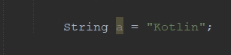
Initializing variables
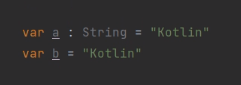
Kotlin automatically applies a data type based on the initialized value you give it if you do not explicitly specify the data type.
compared to Java
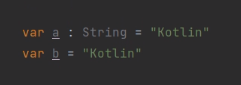
Java is a strongly typed programming language, meaning every variable must be declared with a data type. Kotlin is the complete opposite, it’s made to be as flexible as possible while utilizing Java technologies.
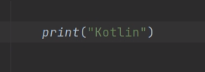
Printing output and scanning input to command line
To print output in Kotlin you can call the “print” or “println” and pass a string parameter to print.
To scan for input in Kotlin you can call the “readLine” and make sure to initialize / set a variable to that method
compared to Java
for printing output, in java you first need to specify the package “System.out.print” for printing a message to terminal vs in kotlin where you just have to call one method
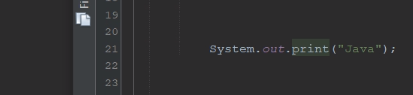
for getting input, in java you need to call the console first then invoke “readLine”


Semi-colin not required for end of statement.
Kotlin does not require you to have a semi colon to specify an end of statement compared to other strongly typed programming language. That is if you have only one statement for that line.

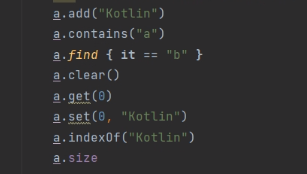
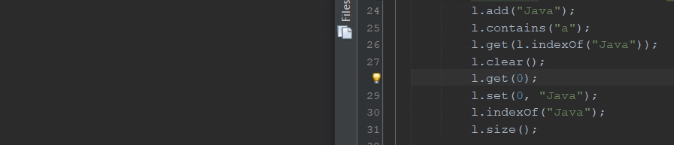
ListOf basic usage
Much like other programming languages Kotlin also offers usage for collective data types.
compared to Java
Compared to java, ListOf is made to be easier to user to type.
Main.kt | Class
The main class will utilize all the essential operational methods created in the previous classes. This starts the game and calls methods in the Game class when necessary, printing the grid and reading an input when needed. This method also contains the “Game Loop”
Jump to: Dissection | Final Output
import game.Game
fun main(args: Array<String>) {
    val tttGame = Game()
    tttGame.start()
    while (tttGame.running)
    {
        // Print grid
        tttGame.printGridToConsole()
        // Check win
        if(tttGame.checkWinningCondition(tttGame.curSign*-1))
        {
            var sign = if(tttGame.curSign!=0) if(tttGame.curSign*-1==1) "O" else "X" else " "
            println("$sign side wins!!!")
            println("New game starting, press enter to start...")
            readLine()
            // Reset and print grid
            tttGame.start()
            tttGame.printGridToConsole()
        }
        else if(tttGame.checkDeadLockCondition())
        {
            println("Draw, resetting, please enter to start...")
            readLine()
            // Reset and print grid
            tttGame.start()
            tttGame.printGridToConsole()
        }
        // Input
        val sign = if (tttGame.curSign==1) "O" else "X"
        println("Mark a grid ($sign):");
        val input = readLine().toString()
        if(input.trim().lowercase() == "end")
        {
            tttGame.end()
            break
        }
        else if(!tttGame.mark(input))
            println("Invalid input try again");
    }
}
Code dissected:
Game Loop
A loop that runs continuously while the game is running. In this loop essential game operations are done, in our case these operations range from drawing the grid with the symbols, displaying message to ask for a prompt, to parsing input from the user.
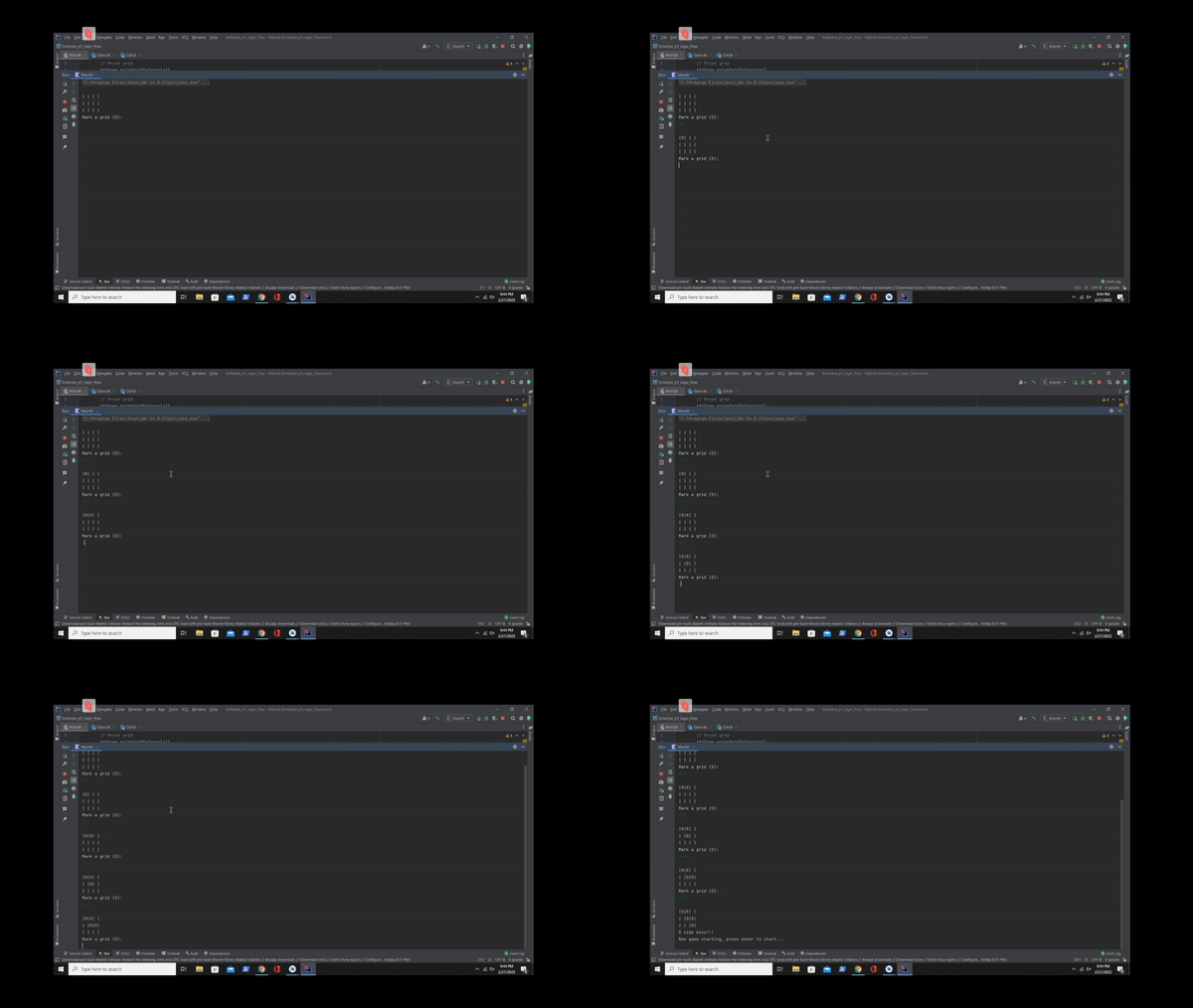
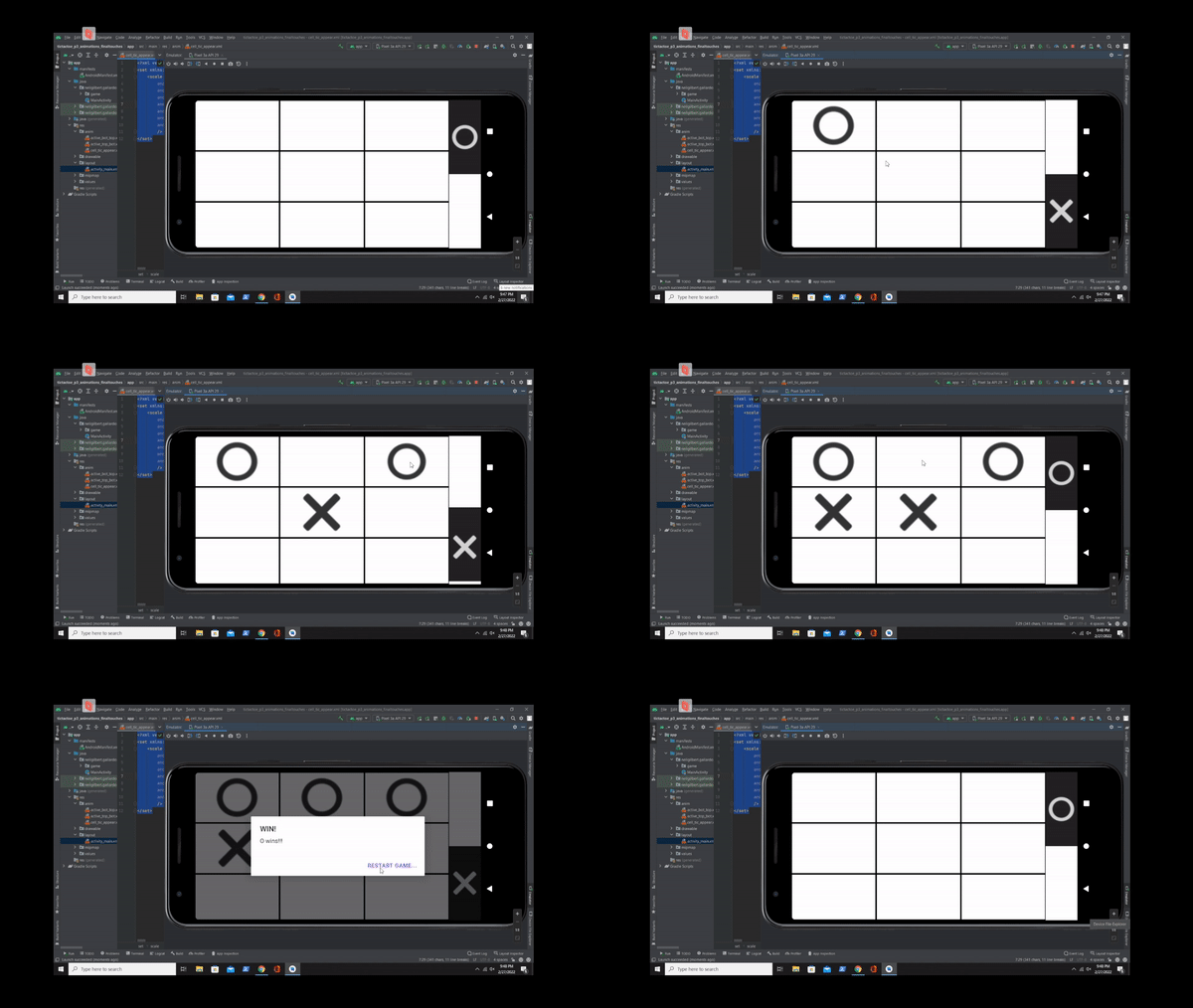
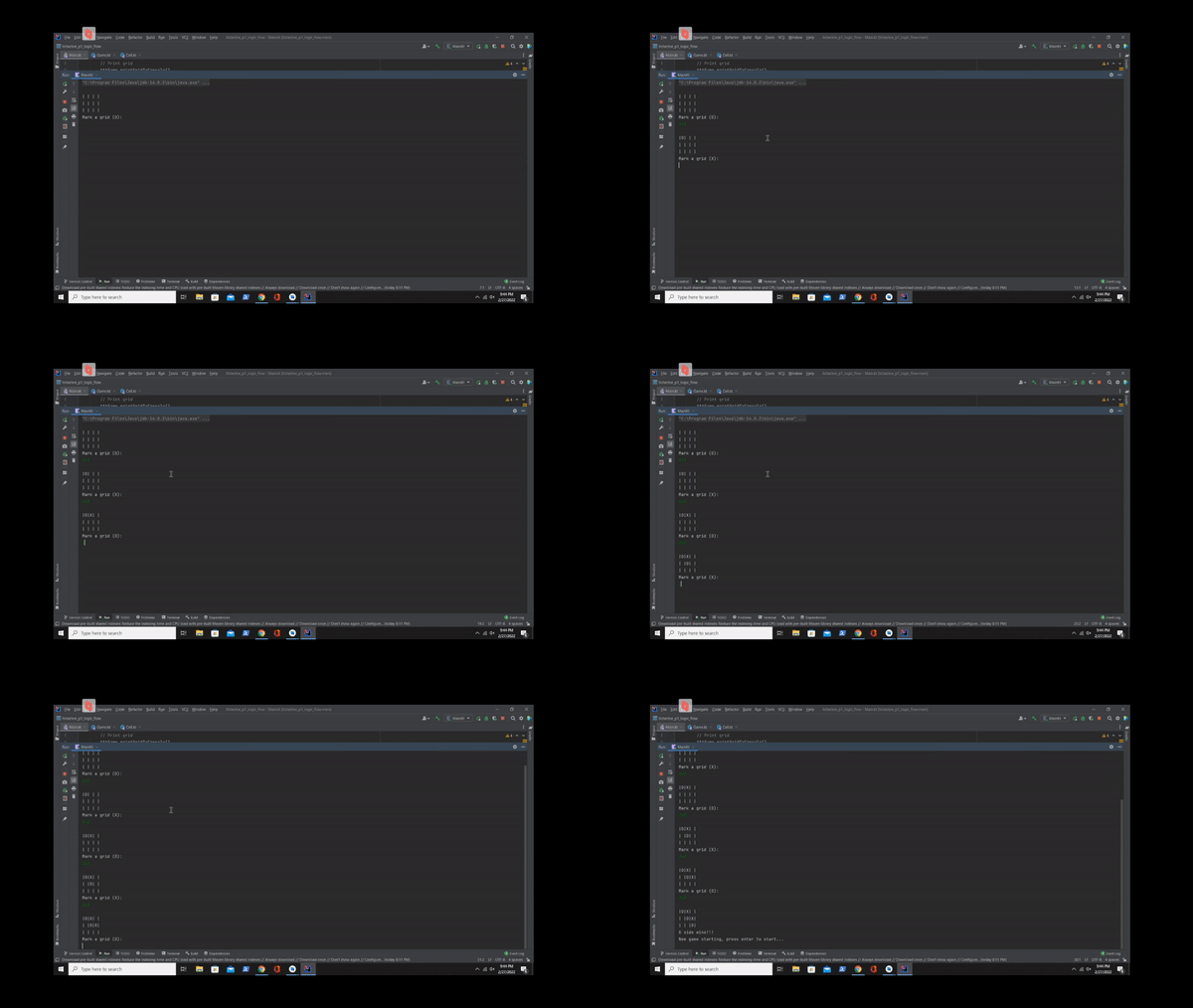
Final output:
Part 2: Android Development & Basic Layouting
In this part we will be porting the logic we made from the command line tic tac toe game we created into a proper mobile application. We will be focused on showing symbols in a formatted phone screen.
We will be utilizing Android Studio for creating this app. This IDE supports mobile development in both Kotlin and Java. This IDE also utilizes xml files for drawable assets, from dynamic images, styles, string values, colors, to an page format that will be used like in an html style output in the app.
Before proceeding make sure to import or copy & paste the code from the last part to a new android project with the same package structure.
Jump to: Resources setup | activity_main.xml | MainActivity.kt
Resources setup:
themes.xml
Under app/res/values/themes open both themes files, add these tags:
<item name="windowActionBar">false</item>
<item name="windowNoTitle">true</item>
<item name="android:windowFullscreen">true</item>
AndroidManifest.xml
Under app/manifests open the manifest file add these tags:
android:screenOrientation="landscape"
border.xml
Under app/res/drawable create a new Drawable Resource File named border.xml
<?xml version ="1.0" encoding ="utf-8"?><!--  Learn More about how to use App Actions: https://developer.android.com/guide/actions/index.html -->
<shape
    xmlns:android="http://schemas.android.com/apk/res/android"
    android:shape="rectangle">
    <solid android:color="#ffffff"/>
    <stroke android:width="2dp" android:color="#000000"/>
</shape>
Cross and Circle symbols png
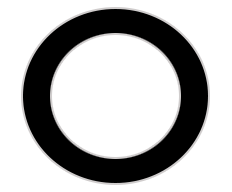

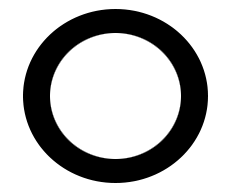
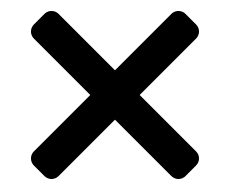
Download the pngs above and go to app/res/drawable add as an image asset. Icon Type: Action Bar and Tab Icons; Asset Type: Image; Path: select the image you downloaded, Theme: CUSTOM, Custom color: Black. Do this for both symbols while also naming them accordingly.
activity_main.xml
This xml will affect how the application will look on startup. This is comparable to an HTML page in which this will mostly function as the UI.
Jump to: Dissection
<?xml version="1.0" encoding="utf-8"?>
<androidx.constraintlayout.widget.ConstraintLayout xmlns:android="http://schemas.android.com/apk/res/android"
    xmlns:app="http://schemas.android.com/apk/res-auto"
    xmlns:tools="http://schemas.android.com/tools"
    android:layout_width="match_parent"
    android:layout_height="match_parent"
    android:orientation="horizontal"
    tools:context=".MainActivity">
    <TableLayout
        android:id="@+id/tictactoeGrid"
        android:layout_width="675dp"
        android:layout_height="match_parent"
        app:layout_constraintBottom_toBottomOf="parent"
        app:layout_constraintStart_toStartOf="parent"
        app:layout_constraintTop_toTopOf="parent">
        <TableRow
            android:layout_width="match_parent"
            android:layout_height="match_parent">
            <LinearLayout
                android:layout_width="match_parent"
                android:layout_height="match_parent"
                android:orientation="horizontal">
                <FrameLayout
                    android:layout_width="wrap_content"
                    android:layout_height="wrap_content"
                    android:background="@drawable/border">
                    <ImageButton
                        android:id="@+id/c1x1"
                        android:layout_width="220sp"
                        android:layout_height="135sp"
                        android:background="#00FFFFFF"
                        android:scaleType="fitCenter" />
                </FrameLayout>
                <FrameLayout
                    android:layout_width="wrap_content"
                    android:layout_height="wrap_content"
                    android:background="@drawable/border">
                    <ImageButton
                        android:id="@+id/c1x2"
                        android:layout_width="220sp"
                        android:layout_height="135sp"
                        android:background="#00FFFFFF"
                        android:scaleType="fitCenter" />
                </FrameLayout>
                <FrameLayout
                    android:layout_width="wrap_content"
                    android:layout_height="wrap_content"
                    android:background="@drawable/border">
                    <ImageButton
                        android:id="@+id/c1x3"
                        android:layout_width="220sp"
                        android:layout_height="135sp"
                        android:background="#00FFFFFF"
                        android:scaleType="fitCenter" />
                </FrameLayout>
            </LinearLayout>
        </TableRow>
        <TableRow
            android:layout_width="match_parent"
            android:layout_height="match_parent">
            <LinearLayout
                android:layout_width="match_parent"
                android:layout_height="match_parent"
                android:orientation="horizontal">
                <FrameLayout
                    android:layout_width="wrap_content"
                    android:layout_height="wrap_content"
                    android:background="@drawable/border">
                    <ImageButton
                        android:id="@+id/c2x1"
                        android:layout_width="220sp"
                        android:layout_height="135sp"
                        android:background="#00FFFFFF"
                        android:scaleType="fitCenter" />
                </FrameLayout>
                <FrameLayout
                    android:layout_width="wrap_content"
                    android:layout_height="wrap_content"
                    android:background="@drawable/border">
                    <ImageButton
                        android:id="@+id/c2x2"
                        android:layout_width="220sp"
                        android:layout_height="135sp"
                        android:background="#00FFFFFF"
                        android:scaleType="fitCenter" />
                </FrameLayout>
                <FrameLayout
                    android:layout_width="wrap_content"
                    android:layout_height="wrap_content"
                    android:background="@drawable/border">
                    <ImageButton
                        android:id="@+id/c2x3"
                        android:layout_width="220sp"
                        android:layout_height="135sp"
                        android:background="#00FFFFFF"
                        android:scaleType="fitCenter" />
                </FrameLayout>
            </LinearLayout>
        </TableRow>
        <TableRow
            android:layout_width="match_parent"
            android:layout_height="match_parent">
            <LinearLayout
                android:layout_width="match_parent"
                android:layout_height="match_parent"
                android:orientation="horizontal">
                <FrameLayout
                    android:layout_width="wrap_content"
                    android:layout_height="wrap_content"
                    android:background="@drawable/border">
                    <ImageButton
                        android:id="@+id/c3x1"
                        android:layout_width="220sp"
                        android:layout_height="135sp"
                        android:background="#00FFFFFF"
                        android:scaleType="fitCenter" />
                </FrameLayout>
                <FrameLayout
                    android:layout_width="wrap_content"
                    android:layout_height="wrap_content"
                    android:background="@drawable/border">
                    <ImageButton
                        android:id="@+id/c3x2"
                        android:layout_width="220sp"
                        android:layout_height="135sp"
                        android:background="#00FFFFFF"
                        android:scaleType="fitCenter" />
                </FrameLayout>
                <FrameLayout
                    android:layout_width="wrap_content"
                    android:layout_height="wrap_content"
                    android:background="@drawable/border">
                    <ImageButton
                        android:id="@+id/c3x3"
                        android:layout_width="220sp"
                        android:layout_height="135sp"
                        android:background="#00FFFFFF"
                        android:scaleType="fitCenter" />
                </FrameLayout>
            </LinearLayout>
        </TableRow>
    </TableLayout>
    <LinearLayout
        android:id="@+id/statusBar"
        android:layout_width="0dp"
        android:layout_height="match_parent"
        android:orientation="horizontal"
        app:layout_constraintBottom_toBottomOf="parent"
        app:layout_constraintEnd_toEndOf="parent"
        app:layout_constraintStart_toEndOf="@+id/tictactoeGrid"
        app:layout_constraintTop_toTopOf="parent">
        <TextView
            android:id="@+id/currSign"
            android:layout_width="0dp"
            android:layout_height="match_parent"
            android:layout_weight="1"
            android:gravity="center_horizontal"
            android:text="O"
            android:textSize="40sp" />
    </LinearLayout>
</androidx.constraintlayout.widget.ConstraintLayout>
Code dissected:
In this phase we will be utilizing 4 types of views a type of button and a simple text
ConstraintLayout
This type of layout determines the location of ui elements based on the constraints set to the screen or another element.
TableLayout
As the name suggests, is a type of layout that displays elements in a table form with each row needing to be in a separate TableRow element.
LinearLayout
Type of layout that displays the elements inside in a list fashion. Has two options: Horizontal / Vertical which displays elements respectively.
FrameLayout
Type of layout that offers no layout assistance and bases UI location based on absolute locations.
ImageButton
Offers the same kinds of functionalities like a normal button but this time you can make the appearance inside the button an image. Possible to fire events when button is clicked.
TextView
Main purpose of a text view is to simply display text. Possible to manipulate text in the backend.
MainActivity.kt | Class
This class will be responsible for initializing required variables for the game as well as getting the correct references to the respective UI element for variables. This also handles needed event listeners for UI elements and needed changes to UI element’s properties.
Jump to: Dissected | Final Output
package neilgilbert.gallardo.tictactoe_p2_android_layout
import android.app.AlertDialog
import android.os.Build
import androidx.appcompat.app.AppCompatActivity
import android.os.Bundle
import android.view.View
import android.widget.ImageButton
import android.widget.TextView
import android.widget.Toast
import androidx.annotation.RequiresApi
import neilgilbert.gallardo.tictactoe_p2_android_layout.game.Cell
import neilgilbert.gallardo.tictactoe_p2_android_layout.game.Game
class MainActivity : AppCompatActivity() {
    var btnList = mutableMapOf<String, ImageButton>();
    override fun onCreate(savedInstanceState: Bundle?) {
        super.onCreate(savedInstanceState)
        val tttGame = Game()
        tttGame.start()
        setContentView(R.layout.activity_main)
        btnList.put("1x1", findViewById<ImageButton>(R.id.c1x1))
        btnList.put("1x2", findViewById<ImageButton>(R.id.c1x2))
        btnList.put("1x3", findViewById<ImageButton>(R.id.c1x3))
        btnList.put("2x1", findViewById<ImageButton>(R.id.c2x1))
        btnList.put("2x2", findViewById<ImageButton>(R.id.c2x2))
        btnList.put("2x3", findViewById<ImageButton>(R.id.c2x3))
        btnList.put("3x1", findViewById<ImageButton>(R.id.c3x1))
        btnList.put("3x2", findViewById<ImageButton>(R.id.c3x2))
        btnList.put("3x3", findViewById<ImageButton>(R.id.c3x3))
        for((loc, imgBtn) in btnList)
        {
            imgBtn.setOnClickListener {
                cellAction(tttGame, it, loc)
                applyCellsIMG(tttGame)
                checkConditions(tttGame, loc)
            }
        }
    }
    private fun cellAction(game : Game, it : View, loc : String)
    {
        game.mark(loc)
    }
    private fun checkConditions(game : Game, loc : String)
    {
        if(game.checkWinningCondition(game.getTic(loc)))
        {
            Toast.makeText(this@MainActivity,
                game.getSign(loc)+" wins!!!",
                Toast.LENGTH_SHORT).show()
            // Reset and print grid
            game.start()
            applyCellsIMG(game)
        }
        else if(game.checkDeadLockCondition())
        {
            Toast.makeText(this@MainActivity,
                "All cells filled restarting...",
                Toast.LENGTH_SHORT).show()
            // Reset and print grid
            game.start()
            applyCellsIMG(game)
        }
        val sign = if(game.curSign!=0) if(game.curSign==1) "O" else "X" else " "
        findViewById<TextView>(R.id.currSign).setText(sign);
    }
    private fun applyCellsIMG(game : Game)
    {
        for((loc, imgBtn) in btnList)
        {
            applyCellImage(game, imgBtn, loc)
        }
    }
    private fun applyCellImage(game : Game, it : View, loc : String)
    {
        if(it is ImageButton)
        {
            if(game.getTic(loc)==1)
                it.setImageResource(R.drawable.im_circle)
            else if(game.getTic(loc)==-1)
                it.setImageResource(R.drawable.im_cross)
            else
                it.setImageBitmap(null);
        }
    }
}
Code dissected:
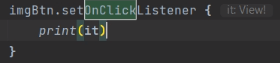
On Click Listener for Button
On click listener injects a view element with an event/s passed in the bracket.
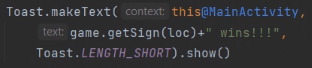
Quick Message
“Toast” allows you to quickly display a message for the app.
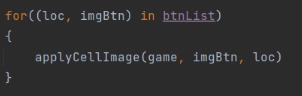
For Looping Structures
Looping structures allow action to be repeatedly executed continuously until loop is broken by condition or a break.
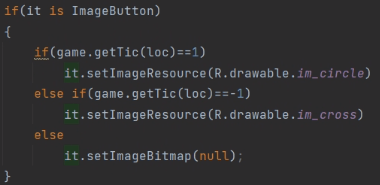
Type checking
Type checking ensures the variable is of certain type. A unique feature for kotlin typechecks is that you don’t need to cast the variable inside the if condition as it intelligently assumes the variable’s data type is the same as the tested type check.
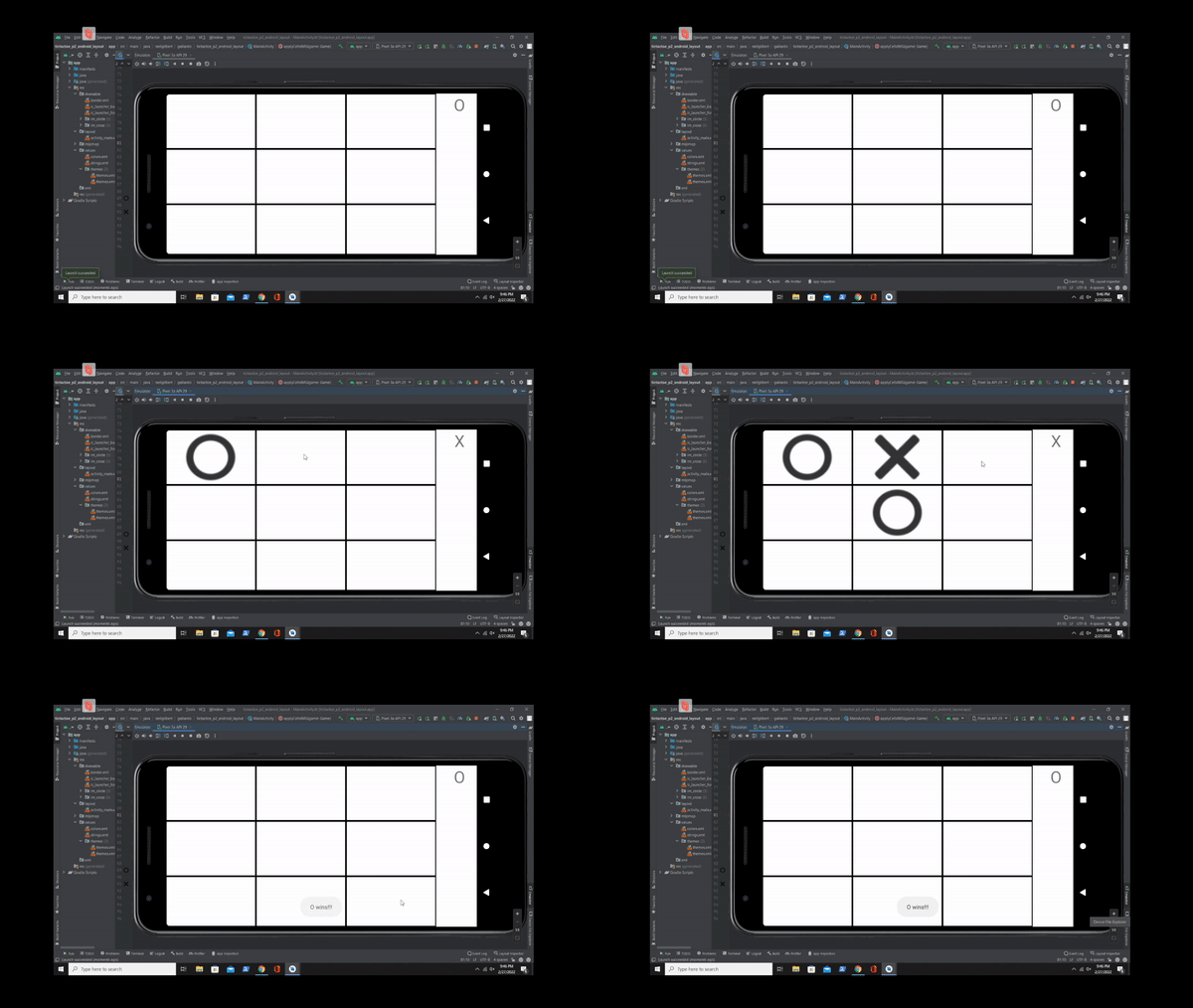
Final Output:
Part 3: Animation and Custom Prompt
In this part, most of the improvements in this part is for polishing and making more polished game end prompt.
Simple Animations in Android Studio
Android development allows you to do simple animations for elements in the UI.
Possible interactions:
- Translate – moves an element based on the original area of the element
- Rotate – rotates an element
- Scale – changes the size of an element
Jump to: Resource setup | MainActivity.kt | Final Output
Resources setup:
cell_tic_appear.xml
Animation for making a symbol appear. Go to app/res/anim/ and create cell_tic_appear.xml
<?xml version="1.0" encoding="utf-8"?>
<set xmlns:android="http://schemas.android.com/apk/res/android">
    <scale
        android:fromXScale="0"
        android:fromYScale="0"
        android:toXScale="1"
        android:toYScale="1"
        android:pivotX="50%"
        android:pivotY="50%"
        android:duration="250"
        />
</set>
active_top_bot.xml
Animation for moving the highlight of the top status symbol to bottom. Go to app/res/anim/ and create active_top_bot.xml
<?xml version="1.0" encoding="utf-8"?>
<set xmlns:android="http://schemas.android.com/apk/res/android">
    <translate
        android:fromYDelta="0.0"
        android:fromXDelta="0.0"
        android:toYDelta="550"
        android:toXDelta="0.0"
        android:duration="250"
        />
</set>
active_bot_top.xml
Animation for moving the highlight the bot status symbol to top. Go to app/res/anim/ and create active_bot_top.xml
<?xml version="1.0" encoding="utf-8"?>
<set xmlns:android="http://schemas.android.com/apk/res/android">
    <translate
        android:fromYDelta="0.0"
        android:fromXDelta="0.0"
        android:toYDelta="-550"
        android:toXDelta="0.0"
        android:duration="250"
        />
</set>
activity_main.xml
Changed the text only display for the sign status to a proper image of signs and back highlights for if a sign is active.
<?xml version="1.0" encoding="utf-8"?>
<androidx.constraintlayout.widget.ConstraintLayout xmlns:android="http://schemas.android.com/apk/res/android"
    xmlns:app="http://schemas.android.com/apk/res-auto"
    xmlns:tools="http://schemas.android.com/tools"
    android:layout_width="match_parent"
    android:layout_height="match_parent"
    android:orientation="horizontal"
    tools:context=".MainActivity">
    <TableLayout
        android:id="@+id/tictactoeGrid"
        android:layout_width="675dp"
        android:layout_height="match_parent"
        app:layout_constraintBottom_toBottomOf="parent"
        app:layout_constraintStart_toStartOf="parent"
        app:layout_constraintTop_toTopOf="parent"
        android:background="@drawable/border">
        <TableRow
            android:layout_width="match_parent"
            android:layout_height="match_parent">
            <LinearLayout
                android:layout_width="match_parent"
                android:layout_height="match_parent"
                android:orientation="horizontal">
                <FrameLayout
                    android:layout_width="wrap_content"
                    android:layout_height="wrap_content"
                    android:background="@drawable/border">
                    <ImageButton
                        android:id="@+id/c1x1"
                        android:layout_width="225sp"
                        android:layout_height="135sp"
                        android:background="#00FFFFFF"
                        android:scaleType="fitCenter" />
                </FrameLayout>
                <FrameLayout
                    android:layout_width="wrap_content"
                    android:layout_height="wrap_content"
                    android:background="@drawable/border">
                    <ImageButton
                        android:id="@+id/c1x2"
                        android:layout_width="225sp"
                        android:layout_height="135sp"
                        android:background="#00FFFFFF"
                        android:scaleType="fitCenter" />
                </FrameLayout>
                <FrameLayout
                    android:layout_width="wrap_content"
                    android:layout_height="wrap_content"
                    android:background="@drawable/border">
                    <ImageButton
                        android:id="@+id/c1x3"
                        android:layout_width="225sp"
                        android:layout_height="135sp"
                        android:background="#00FFFFFF"
                        android:scaleType="fitCenter" />
                </FrameLayout>
            </LinearLayout>
        </TableRow>
        <TableRow
            android:layout_width="match_parent"
            android:layout_height="match_parent">
            <LinearLayout
                android:layout_width="match_parent"
                android:layout_height="match_parent"
                android:orientation="horizontal">
                <FrameLayout
                    android:layout_width="wrap_content"
                    android:layout_height="wrap_content"
                    android:background="@drawable/border">
                    <ImageButton
                        android:id="@+id/c2x1"
                        android:layout_width="225sp"
                        android:layout_height="135sp"
                        android:background="#00FFFFFF"
                        android:scaleType="fitCenter" />
                </FrameLayout>
                <FrameLayout
                    android:layout_width="wrap_content"
                    android:layout_height="wrap_content"
                    android:background="@drawable/border">
                    <ImageButton
                        android:id="@+id/c2x2"
                        android:layout_width="225sp"
                        android:layout_height="135sp"
                        android:background="#00FFFFFF"
                        android:scaleType="fitCenter" />
                </FrameLayout>
                <FrameLayout
                    android:layout_width="wrap_content"
                    android:layout_height="wrap_content"
                    android:background="@drawable/border">
                    <ImageButton
                        android:id="@+id/c2x3"
                        android:layout_width="225sp"
                        android:layout_height="135sp"
                        android:background="#00FFFFFF"
                        android:scaleType="fitCenter" />
                </FrameLayout>
            </LinearLayout>
        </TableRow>
        <TableRow
            android:layout_width="match_parent"
            android:layout_height="match_parent">
            <LinearLayout
                android:layout_width="match_parent"
                android:layout_height="match_parent"
                android:orientation="horizontal">
                <FrameLayout
                    android:layout_width="wrap_content"
                    android:layout_height="wrap_content"
                    android:background="@drawable/border">
                    <ImageButton
                        android:id="@+id/c3x1"
                        android:layout_width="225sp"
                        android:layout_height="135sp"
                        android:background="#00FFFFFF"
                        android:scaleType="fitCenter" />
                </FrameLayout>
                <FrameLayout
                    android:layout_width="wrap_content"
                    android:layout_height="wrap_content"
                    android:background="@drawable/border">
                    <ImageButton
                        android:id="@+id/c3x2"
                        android:layout_width="225sp"
                        android:layout_height="135sp"
                        android:background="#00FFFFFF"
                        android:scaleType="fitCenter" />
                </FrameLayout>
                <FrameLayout
                    android:layout_width="wrap_content"
                    android:layout_height="wrap_content"
                    android:background="@drawable/border">
                    <ImageButton
                        android:id="@+id/c3x3"
                        android:layout_width="225sp"
                        android:layout_height="135sp"
                        android:background="#00FFFFFF"
                        android:scaleType="fitCenter" />
                </FrameLayout>
            </LinearLayout>
        </TableRow>
    </TableLayout>
    <LinearLayout
        android:id="@+id/statusBar"
        android:layout_width="0dp"
        android:layout_height="match_parent"
        android:orientation="vertical"
        app:layout_constraintBottom_toBottomOf="parent"
        app:layout_constraintEnd_toEndOf="parent"
        app:layout_constraintStart_toEndOf="@+id/tictactoeGrid"
        app:layout_constraintTop_toTopOf="parent">
        <ImageView
            android:id="@+id/status_bgCircle"
            android:layout_width="match_parent"
            android:layout_height="0dp"
            android:layout_weight="1"
            app:tint="@color/white"
            android:background="#E60A0A0A" />
        <ImageView
            android:id="@+id/status_bgCross"
            android:layout_width="match_parent"
            android:layout_height="0dp"
            android:layout_weight="1"
            app:tint="@color/white" />
    </LinearLayout>
    <LinearLayout
        android:id="@+id/statusBar_bgHighlight"
        android:layout_width="0dp"
        android:layout_height="match_parent"
        android:orientation="vertical"
        app:layout_constraintBottom_toBottomOf="parent"
        app:layout_constraintEnd_toEndOf="parent"
        app:layout_constraintStart_toEndOf="@+id/tictactoeGrid"
        app:layout_constraintTop_toTopOf="parent">
        <ImageView
            android:id="@+id/status_cross"
            android:layout_width="match_parent"
            android:layout_height="0dp"
            android:layout_weight="1"
            app:srcCompat="@drawable/im_circle"
            app:tint="@color/white" />
        <ImageView
            android:id="@+id/status_circle"
            android:layout_width="match_parent"
            android:layout_height="0dp"
            android:layout_weight="1"
            app:srcCompat="@drawable/im_cross"
            app:tint="@color/white" />
    </LinearLayout>
</androidx.constraintlayout.widget.ConstraintLayout>
MainActivity.kt | Class
The additions in this part from the last part are playing appropriate animations when actions are performed and creating custom prompt.
package neilgilbert.gallardo.tictactoe_p3_animations_finaltouches
import androidx.appcompat.app.AppCompatActivity
import android.os.Bundle
import android.view.View
import android.view.animation.Animation
import android.view.animation.AnimationUtils
import android.widget.ImageButton
import android.widget.ImageView
import android.widget.TextView
import android.widget.Toast
import androidx.appcompat.app.AlertDialog
import neilgilbert.gallardo.tictactoe_p3_animations_finaltouches.game.Game
class MainActivity : AppCompatActivity() {
    var btnList = mutableMapOf<String, ImageButton>();
    override fun onCreate(savedInstanceState: Bundle?) {
        super.onCreate(savedInstanceState)
        val tttGame = Game()
        tttGame.start()
        setContentView(R.layout.activity_main)
        btnList.put("1x1", findViewById<ImageButton>(R.id.c1x1))
        btnList.put("1x2", findViewById<ImageButton>(R.id.c1x2))
        btnList.put("1x3", findViewById<ImageButton>(R.id.c1x3))
        btnList.put("2x1", findViewById<ImageButton>(R.id.c2x1))
        btnList.put("2x2", findViewById<ImageButton>(R.id.c2x2))
        btnList.put("2x3", findViewById<ImageButton>(R.id.c2x3))
        btnList.put("3x1", findViewById<ImageButton>(R.id.c3x1))
        btnList.put("3x2", findViewById<ImageButton>(R.id.c3x2))
        btnList.put("3x3", findViewById<ImageButton>(R.id.c3x3))
        for((loc, imgBtn) in btnList)
        {
            imgBtn.setOnClickListener {
                cellAction(tttGame, it, loc)
                applyCellsIMG(tttGame)
                checkConditions(tttGame, loc)
            }
        }
    }
    private fun cellAction(game : Game, it : View, loc : String)
    {
        if(game.mark(loc))
        {
            val cellAnim = AnimationUtils.loadAnimation(this, R.anim.cell_tic_appear)
            it.startAnimation(cellAnim)
            playStatusAnim(game)
        }
    }
    private fun checkConditions(game : Game, loc : String)
    {
        if(game.checkWinningCondition(game.getTic(loc)))
        {
            onGameEndMessage("WIN!",game.getSign(loc)+" wins!!!", game)
        }
        else if(game.checkDeadLockCondition())
        {
            onGameEndMessage("DRAW","All cells filled, draw, restarting...", game)
        }
    }
    private fun onGameEndMessage(title: String, message: String, game: Game)
    {
        var builder = AlertDialog.Builder(this)
        builder.setCancelable(false)
        builder.setTitle(title)
        builder.setMessage(message)
        builder.setPositiveButton("Restart game..."){ dialog, id ->
            game.start()
            applyCellsIMG(game)
            playStatusAnim(game)
        }
        builder.show()
    }
    private fun playStatusAnim(game: Game)
    {
        val status_bgCross = findViewById<ImageView>(R.id.status_bgCross)
        val status_bgCircle = findViewById<ImageView>(R.id.status_bgCircle)
        if(game.curSign==-1)
        {
            val statusAnim = AnimationUtils.loadAnimation(this, R.anim.active_top_bot)
            statusAnim.setAnimationListener(object : Animation.AnimationListener {
                // All the other override functions
                override fun onAnimationStart(p0: Animation?) {
                    status_bgCircle.setBackgroundColor(0xE60A0A0A.toInt())
                }
                override fun onAnimationRepeat(p0: Animation?) {
                }
                override fun onAnimationEnd(p0: Animation?) {
                    status_bgCircle.setBackgroundColor(0x00000000.toInt())
                    status_bgCross.setBackgroundColor(0xE60A0A0A.toInt())
                }
            })
            status_bgCircle.startAnimation(statusAnim)
        }
        else if(game.curSign==1){
            val statusAnim = AnimationUtils.loadAnimation(this, R.anim.active_bot_top)
            statusAnim.setAnimationListener(object : Animation.AnimationListener {
                // All the other override functions
                override fun onAnimationStart(p0: Animation?) {
                    status_bgCross.setBackgroundColor(0xE60A0A0A.toInt())
                }
                override fun onAnimationRepeat(p0: Animation?) {
                }
                override fun onAnimationEnd(p0: Animation?) {
                    status_bgCross.setBackgroundColor(0x00000000.toInt())
                    status_bgCircle.setBackgroundColor(0xE60A0A0A.toInt())
                }
            })
            status_bgCross.startAnimation(statusAnim)
        }
    }
    private fun applyCellsIMG(game : Game)
    {
        for((loc, imgBtn) in btnList)
        {
            applyCellImage(game, imgBtn, loc)
        }
    }
    private fun applyCellImage(game : Game, it : View, loc : String)
    {
        if(it is ImageButton)
        {
            if(game.getTic(loc)==1)
                it.setImageResource(R.drawable.im_circle)
            else if(game.getTic(loc)==-1)
                it.setImageResource(R.drawable.im_cross)
            else
                it.setImageBitmap(null);
        }
    }
}
Final Output:
GitHub Repository: https://github.com/neilgilbertg/tictactoe-kotlin
 Portfolio: NGG